


Help And Support
OCBC Digital Banking - Login
-
Logging in to OCBC Online Banking/OCBC Digital app for the first time
1. Download the OCBC Digital app on your mobile device
-
Enter your access code and PIN
-
You'll then be asked for a One-Time password (OTP) which will be sent to you either through
SMS or Hardware Token, depending on the token option which you have signed up for
- Hardware token – Enter the OTP shown on the screen (if you chose this option, we would have mailed the hardware token to you).
- SMS token – Enter the OTP shown on your mobile phone.
2. Log in to Online Banking via PC/desktop
-
Go to ocbc.com/login
-
Enter your access code and PIN
-
You'll then be asked for a one-time password (OTP) which will be sent to you either through
SMS or Hardware Token, depending on the token option which you have signed up for
- Hardware token – Enter the OTP shown on the screen (if you chose this option, we would have mailed the hardware token to you).
- SMS token – Enter the OTP shown on your mobile phone.
If you have any questions about your token or login, call us at 1800 363 3333 (+ 65 6363 3333 if you’re calling from overseas).
You can also access via our OCBC Digital app available for the iPhone or Android devices. Alternatively, you can also visit us at ocbc.com/login on your smartphone’s browser.
Here are the steps:
- Go to ocbc.com/getonline
- Fill in your ATM/credit/debit card details (Last 8 digits of card no. & 6-digit PIN)
- Fill in your personal details, enter the generated captcha and tap on “Next”
- Accept the Terms & Conditions
- Create and confirm your new Online Banking PIN
- Tap on “Submit” to confirm your mobile no.
- Tap Next on One Token introduction page* to complete Transaction
*This is only introduction page which will not result to any OCBC OneToken registration on your newly created access code. You will still be required to login to OCBC Digital app to proceed with OneToken registration.
-
-
Reset Online Banking PIN / unlock Online Banking access
Follow these steps below.
OCBC Digital app:
- Launch the OCBC Digital app.
- Tap on "Trouble Logging In?".
- Tap on "Get Help".
- Fill in the online form with the following details:
- Last 8 digits of your active OCBC ATM/debit/credit card
- Your 6-digit card PIN
- Your personal details
- Extra Security Check
- And tap "Next"
- Select "Reset Online Banking PIN" and tap "Next".
- Tap on "Agree" after reading the Terms and Conditions.
- Enter your ATM/credit/debit card PIN and your new 6-digit Online Banking PIN. Enter again to confirm then tap "Submit".
- You will be prompted to enter the one-time password (OTP)* which is sent to your registered mobile number.
- Upon successful verification, you will be able to log in with your new Online Banking PIN/unlock your Online Banking access.
OCBC Online Banking:
- Go to ocbc.com/reset
- Fill in the online form with the following details:
- Last 8 digits of your active OCBC ATM/debit/credit card
- Your 6-digit card PIN
- Your personal details
- Extra Security Check
- And click "Next"
- Under the dropdown menu, select "Reset Online Banking PIN", and click "Next".
- Click on "Accept" after reading the Terms and Conditions.
- Enter your new 6-digit Online Banking PIN, confirm on New PIN and click "Submit".
- You will be prompted to enter the One-Time password (OTP)* which is sent to your registered mobile number.
- Upon successful verification, you will be able to log in with your new Online Banking PIN/unlock your Online Banking access.
* If you have activated OCBC OneToken, you will need to click "Accept" on One Token push notification sent to your mobile device to authenticate your transaction. Please visit ocbc.com/onetoken for more information.
-
Retrieve Online Banking Access Code
Follow these steps below.
OCBC Digital app:
- Launch the OCBC Digital app.
- Tap on "Trouble Logging In?".
- Tap on "Get Help".
- Fill in the online form with the following details:
- Last 8 digits of your active OCBC ATM/debit/credit card
- Your 6-digit card PIN
- Your personal details
- Extra Security Check
- And tap "Next".
- Select "Retrieve Online Banking Access Code“ and tap "Next".
- Tap on "Agree" after reading the Terms and Conditions.
- You will be prompted to enter the one-time password (OTP)* which is sent to your registered mobile number.
- Upon successful verification, you will be able to retrieve your Online Banking Access Code.
OCBC Online Banking:
- Go to ocbc.com/reset
- Fill in the online form with the following details:
- Last 8 digits of your active OCBC ATM/debit/credit card
- Your 6-digit card PIN
- Your personal details
- Extra Security Check
- And click "Next".
- Under the dropdown menu, select "Retrieve Online Banking Access Code", and click "Next".
- Click on "Accept" after reading the Terms and Conditions.
- You will be prompted to enter the one-time password (OTP)* which is sent to your registered mobile number.
- Upon successful verification, you will be able to retrieve your Online Banking Access Code.
* If you have activated OCBC OneToken, you will need to click "Accept" on One Token push notification sent to your mobile device to authenticate your transaction. Please visit ocbc.com/onetoken for more information.
-
Change Online Banking Access Code or PIN
Follow these steps below.
Change Online Banking Access Code
You can change your Online Banking Access code via OCBC Online Banking or OCBC Digital app and it will take effect immediately.OCBC Digital app:
- Launch the OCBC Digital app.
- Tap on the menu bar on the top left of the screen.
- Tap on "Profile & Settings"
- Select "Online Banking settings".
- Tap on “Change Access Code”.
- Enter your preferred access code.
- Tap on “Submit” to proceed.
- Enter One-Time Password (OTP)* and tap “Submit” to complete the transaction.
OCBC Online Banking:
- Login to online banking (ocbc.com/login).
- Click “Customer Service” in the top navigation bar.
- Select “Change Access Code”.
- Enter ‘Preferred access code’.
- Click “Submit” to proceed.
- Enter One-Time Password (OTP)* and tap “Submit” to complete the transaction.
Change Online Banking PIN
- Login to online banking (ocbc.com/login).
- Click “Customer Service” in the top navigation bar.
- Select “Change PIN”.
- Enter your current and new PIN – 6 digit PIN.
- Click “Submit” to proceed.
- Enter One-Time Password (OTP)* and tap “Submit” to complete the transaction.
If you have activated OCBC OneToken, you will not be required to enter OTPs for OCBC Digital app as authentications will take place seamlessly in the background. For OCBC Online Banking, you will need to click "Accept" on One Token push notification sent to your mobile device to authenticate your transaction. Please visit ocbc.com/onetoken for more information.
-
Problems logging in
-
Why am I unable to login?
Please refer to the list of recommended web browsers.
If you are accessing online banking through a local area network, please check that it allows secured transactions through the Internet.
You may also want to clear your cache and cookies through your browser. Please see below the steps for different browsers.
Safari
- Go to "Safari"
- Select "Empty cache"
Google Chrome or Microsoft Edge
- Go to “History”
- Select “Clear browsing data”
If you are still unable to login and encounter error message, please contact us.
-
Will I be able to close the page indicating estimated waiting time and proceed to access services available on OCBC Digital app / OCBC Online Banking webpage?
We sincerely advise you to continue in the queue if you wish to access your accounts soon. If you do not wish to access services on OCBC Digital app / OCBC Online Banking webpage immediately, you can close the page and login later.
-
When the screen is displaying estimated waiting time, am I able to navigate to other apps/websites or do I have to wait for my turn to login?
You will be able to navigate to other apps/websites while retaining your queue. Do note that when it is your turn, there is a queue validity period for you to login.
If you return to the OCBC Digital Banking page after the queue validity period, you will be advised to re-join the queue again.
-
Will I be notified when I have reached my turn to login while I am on other apps/websites i.e. Navigated away from OCBC Digital app / OCBC Online Banking webpage?
You will need to navigate back to OCBC Digital app / OCBC Online Banking login page within the stipulated estimated waiting time provided on the screen.
If you return to the OCBC Digital Banking page after the queue validity period, you will need to re-join the queue again.
-
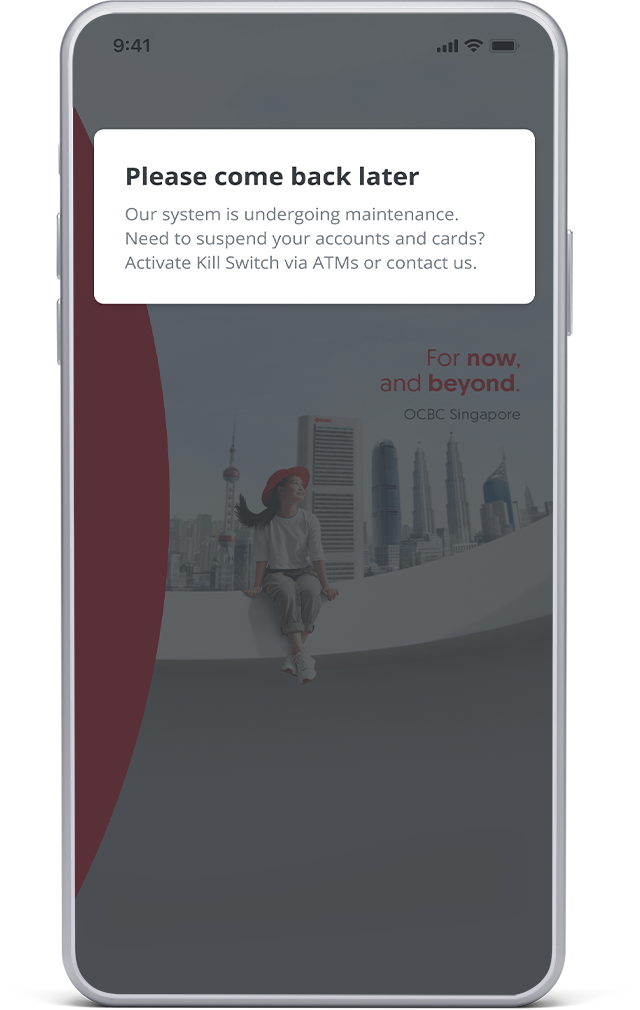
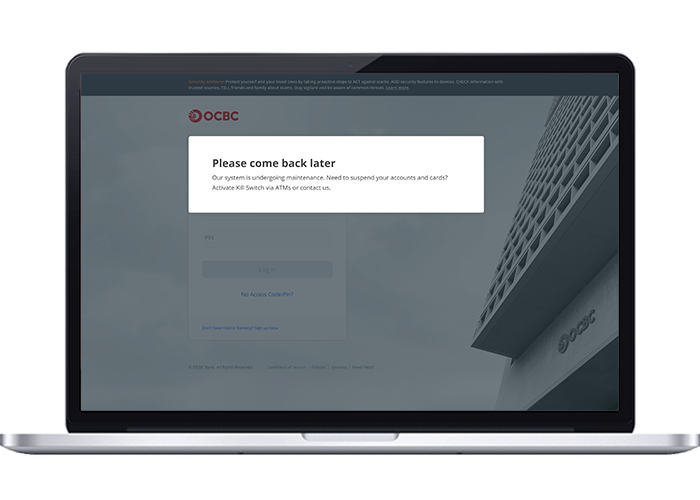
Why am I seeing a screen telling me to login later upon launching OCBC Digital app / OCBC Online Banking webpage?
The bank conducts system maintenance for OCBC Digital Banking platforms from time to time to ensure optimal banking experience for our customers. We assure you that we do try to minimise inconvenience while we carry out necessary functions.
Once we complete these activities, you can be assured of a smooth experience with our services and you will be able to login.
On mobile app
On desktop
-
-
About OCBC OneLook™/OneTouch™
-
What is OCBC OneLook™ and OneTouch™?
OCBC OneLook™/OneTouch™ offer an easy, quick and secure access to your account information. The service leverages on your device’s fingerprint or facial recognition technology which lets you log in securely to your OCBC Digital app with the touch of a fingerprint or just a glance.
-
How do I use OCBC OneTouch™ and OCBC OneLook™?
OCBC OneTouch™/OneLook™ is available on the OCBC Digital app for Android and iPhones with fingerprint features and iPhones with facial recognition (Face ID) features, respectively. You may download or update the app from the App Store or Play Store. Once activated, simply tap on the OCBC OneLook™/OneTouch™ icon on the login screen to use.
-
What services are accessible via OCBC OneLook™/OneTouch™?
After logging in with OCBC OneLook™/OneTouch™, you will be able to view your bank balances (with masked account numbers if you have opted for Quick view access), last 7 transactions and credit card overview (credit limit, amount due, due date). If you wish to perform a transaction or view more details, enter a One-time Password (OTP) when prompted (sent to your registered mobile number or from your hardware token).
If you have activated OCBC OneToken on this device, you will not have to enter OTPs. Your transactions will be seamlessly authenticated in the background.
-
What are the devices eligible to access OCBC OneLook™/OneTouch™?
OneTouch™ – iPhones with fingerprint recognition, running on iOS 13 or above; Android smartphones with fingerprint recognition, running on Android 8.0 and above. OCBC OneLook™ – iPhone X or newer models with facial recognition (Face ID), running on iOS 13 or above.
To protect your financial information, jailbroken or rooted devices and devices with malicious apps are not supported.
-
Is OCBC OneLook™/OneTouch™ secure? How do I activate it?
Access via OCBC OneLook™/OneTouch™ is only possible with identification via fingerprint or facial recognition, which is unique to you. You will need to do a one-time activation with your OCBC Online Banking Access Code, PIN and OTP to start using the service. Further, the service can only be activated on one device at a time. If you activate on a new device, it will be automatically deactivated from the previous device.
The app does not store any account numbers, balances or other related information on the device.
-
Can I activate OCBC OneLook™/OneTouch™ on multiple devices?
No. You can only activate OCBC OneLook™/OneTouch™ on one device at any time.
-
I have changed to a new phone, can I continue using OCBC OneLook™/OneTouch™ on my new phone?
Yes, simply activate OCBC OneLook™/OneTouch™ on your new compatible device.
-
I have activated OCBC OneLook™/OneTouch™ but would like to deactivate the service, how do I do so?
Log in to the OCBC Digital app on your device, tap on the menu on the top left, go to Profile & Settings > Deactivate OCBC OneLook™/OneTouch™. The service will also be automatically deactivated on your old device when you activate it on another device.
-
-
Reactivate your 2FA
You will need to reactivate your token if you have exceeded the maximum number of attempts to submit a valid one-time password (OTP) for login to OCBC Digital app or OCBC Online Banking.
You may call us at 1800 363 3333 or (65) 6363 3333 if you are calling from overseas.
-
Additional security with 2FA
2-Factor Authentication (2FA) is a security measure that provides greater peace of mind when you bank online, you can choose to log in using SMS or Hardware token. If you have activated OCBC OneToken, you will not be required to enter OTPs as authentications will take place seamlessly in the background. For OCBC Online Banking, you will need to click "Accept" on One Token push notification sent to your mobile device to authenticate your transaction. More about 2FA.
-
Access OCBC Online Banking on a public computer
We do not encourage the access of online banking using a public or shared PC as you’re more exposed to malicious programs or viruses.
-
Safeguard your PIN
- PINs should be 6 digits, you are advised not to repeat any digit more than once.
- PINs should not be based on user-id, personal telephone number, birthday or any other personal information.
- PINs must be kept confidential and not be divulged to anyone.
- PINs must be memorised and not be recorded anywhere.
- PINs must be changed regularly.
- The same PIN should not be used for different websites, applications or services, particularly when they relate to different entities.
- Please do not select the browser option for storing or retaining user name and password.
- Please check the authenticity of the bank's website by comparing the URL and observing the bank's name in its digital certificate or by observing the indicators provided by an extended validation certificate.
- Please check that the bank's website address changes from http:// to https:// and a security icon that looks like a look or key appears when authentication and encryption is expected.
- Please do not allow anyone to keep, use or tamper with your 2FA security token.
- Please do not reveal the one-time password (OTP) generated by the 2FA token to anyone.
- Please do not divulge the serial number of your 2FA token to anyone.
- Please check your bank account balance and transactions frequently and report any discrepancy.
-
Discontinuation of the OCBC Digital app for iPad
-
How do I log in to OCBC Digital app after the discontinuation?
You may download and log in via the OCBC Digital app on your mobile device for a convenient banking experience or visit ocbc.com/login on your browser.
What do I need to do?
You will be prompted to delete the app when you launch it from 15 October 2019. You can delete the app by pressing on the app icon for three seconds and then clicking on the “x” sign.
-
-
Check region format setting on iPhone
If you are using iPhone to log in to OCBC Digital, please ensure 'Singapore' is the chosen region format for your device so that information displayed is aligned.
Refer to the steps below to check the region format on your device.
- Go to "Settings"
- Select "General"
- Select "Language & Region"
- For "Region Format, select "Singapore"
-
Lost your 2FA hardware token
Call us at 1800 363 3333 or (65) 6363 3333 if you are calling from overseas.
-
Update OTP Mobile Number
You can update the mobile number you want to receive SMS OTPs on through Internet Banking or the OCBC Digital app, if you have your hardware token.
OCBC Digital app
- Log in to OCBC Digital app
- Tap on the menu bar in the top left corner of the screen
- Tap on "Profile & Settings"
- Select "Update phone number/email"
- Enter details you would like changed in the relevant fields (fields left blank will not be changed)
- Tap on "Save" to proceed
- Check that your details are correct
- Click "Submit" and authorise the transaction using your hardware token or OCBC OneToken* to complete the transaction
OCBC Online Banking
- Login to OCBC Online Banking
- Click "Customer Service" in the top navigation bar
- Select "Change mailing address" or "Change personal details"
- Provide details you would like to change in the relevant fields
- Check that your details are correct and click "Next" to proceed
- Click "Submit" and authorise the transaction using your hardware token or OCBC OneToken* to complete the transaction
* If you have activated OCBC OneToken, you will not be required to enter OTPs for OCBC Digital app as authentications will take place seamlessly in the background. For OCBC Online Banking, you will need to click "Accept" on One Token push notification sent to your mobile device to authenticate your transaction. Please visit ocbc.com/onetoken for more information.
-
Recommended browsers
- Microsoft Edge
- Firefox latest 10 versions
- Safari version 9 or later
- Chrome latest 10 versions
- MAC OS version 10.11 and above
Microsoft ended its support for Internet Explorer and retired the browser on 15 June 2022. Please use the latest version of one of the recommended browsers above for a smooth and secure experience on the OCBC website and OCBC Online Banking.